
Overview
Race Cards
Your race-day command centre — live race cards, project shortlists, qualifiers, form analysis, and Betfair betting in one seamless view.
The CARDS tab is where all your saved research turns into profitable action. On any given race day, you don't need to hop between different websites, form books, and exchange screens. Simply tick the projects you want to follow, scan your qualifying runners, drill into deep form, and place or schedule your bets directly with Betfair without leaving Hedger Pro.
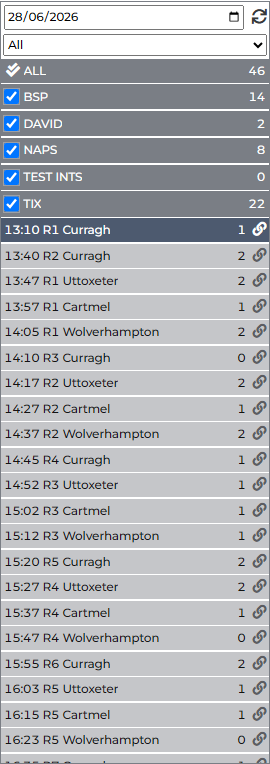
What You Can Do on Cards
- Track Live & Historical Qualifiers: View today's runners, look ahead at future cards, or browse historical dates to see what qualified in the past.
- Scan Project Shortlists: View qualifiers for an individual project, or open the ALL shortlist to see every qualifying runner across all your active projects in one master table.
- Flexible Viewing Layouts: Switch between a continuous Combined Layout (scrolling all qualifiers across the day) or a grouped Separated Layout (runners organized cleanly race-by-race).
- Deep Runner Analysis: Click any horse to reveal previous runs, in-running comments, minutes-to-post odds movement, and Total Performance Data (TPD) stride metrics.
- Built-In Betting Slip: Click Back or Lay odds to place immediate exchange bets, BSP bets, or automated Hedge bets (Back-to-Lay / Lay-to-Back).
Race list & shortlists
The left panel is your control hub for dates, project shortlists, and race meetings.
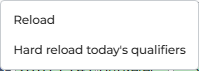
1. Date Picker & Refresh
- Date Picker: Choose Today, pick a Future date to inspect upcoming cards, or select any Past date to review historical results.
- Refresh (Left-Click): Click the circular sync icon beside the date to instantly refresh live odds and project shortlists.
- Advanced Refresh (Right-Click): Right-clicking the sync icon opens extra options:
- Reload: Standard card refresh.
- Hard reload today's qualifiers: Forces the server to completely re-scan and re-sync today's qualifier data from scratch.
- Hard reload historical qualifiers: Performs a complete re-sync of qualifiers on past cards.
2. The Meeting Filter
Above the race list, a handy dropdown lets you filter the day's card:
- All: Shows all scheduled race meetings.
- With Quals: Instantly hides every race that has no qualifiers for your currently ticked projects. This is fantastic on busy Saturdays with 30+ races — ticking "With Quals" immediately narrows your view to just the races where you have action!
- GB / IE: Filter exclusively to Great Britain or Irish racing.
- Specific Venue: Choose an individual course (e.g. Cheltenham or Kempton).
Your preference is saved automatically in your browser so it remains set between visits.
3. Project Shortlists
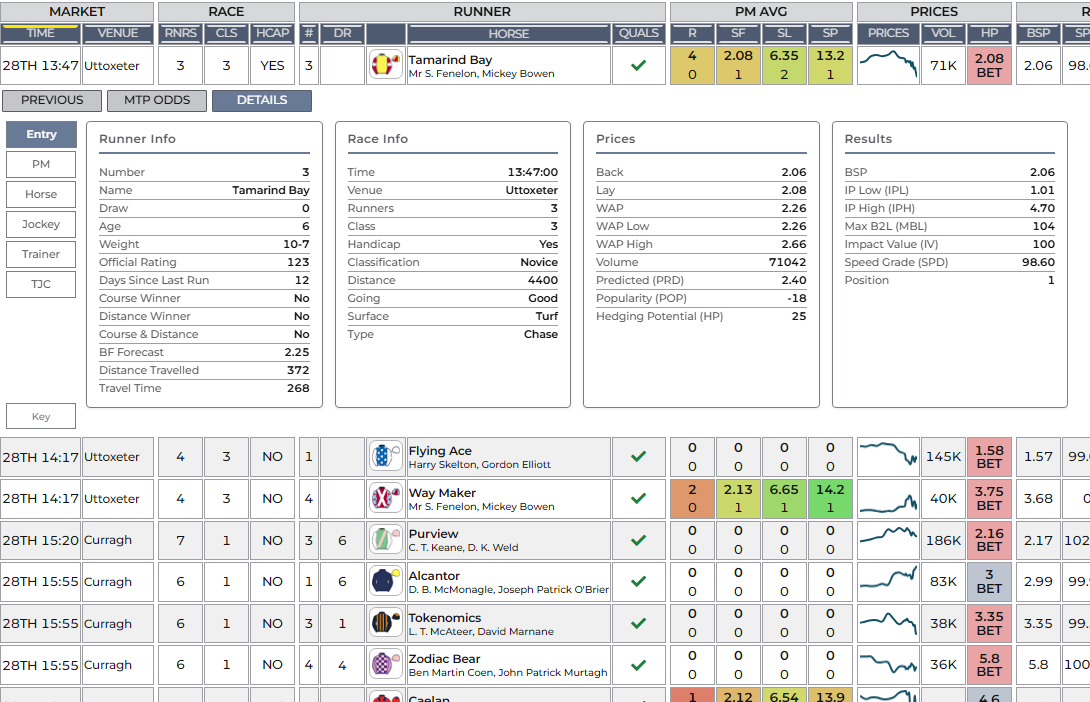
Below the meeting filter sits your list of saved projects:
| Control | What It Does |
|---|---|
| Checkbox | Tick or untick a project to include or exclude it from qualifier counts and combined views. |
| Check-Double Icon (Toggle All) | Click to instantly tick all projects, or click again to clear all ticks. |
| Project Name | Click the project's name to open its qualifying runners in the main table. |
| Count Badge | Displays the number of runners qualifying for that project on the selected date. |
Asterisk (*) Suffix | Indicates a combined project (created by merging multiple projects). |
Your Ticked Projects Are Remembered
The projects you tick in the left rail remain saved in your browser between sessions. You don't have to re-tick them every time you log in.
4. The ALL Row
At the top of your project list is the ALL row. Clicking ALL opens a single, unified table containing every qualifying horse across all of your ticked projects. This is the ultimate scan tool for your betting day: one master shortlist showing every runner you need to consider.
5. The Race List
Beneath your projects is the chronological list of meetings and race times.
- Beside each race time, a number badge shows exactly how many of your qualifying horses are running in that race.
- Click any race time to load the full runner field for that individual race.
- Click the small Betfair link icon beside a race to open that market directly on Betfair in a new browser tab.
Qualifiers
How Qualifiers Work
When a runner matches the rules of your saved systems, Hedger Pro flags it with visual qualifier icons in the QUALS column and lists the matching project names in the PROJECTS column.

Qualifier Icons (QUALS Column)
| Icon | Status | Meaning |
|---|---|---|
| ✓ (Green Check) | Confirmed | Meets all system filters (including odds parameters) and the Minutes to Post (MTP) cutoff time has passed. This is a fully confirmed qualifier ready to bet. |
| ✓ (Greyed Out) | Confirmed (Inactive) | The runner would qualify, but the project is currently in Draft mode, or you have marked the project inactive for this race. |
| ⏳ (Hourglass) | Pre-Qualifier | The runner currently meets all dynamic criteria, but the race has not yet reached the project's MTP cutoff. (Visible on today's and future cards only). |
| ⏳ (Greyed Out) | Pre-Qualifier (Inactive) | Potential qualifier at MTP, but the project is inactive for this race. |
Pre-Qualifiers on Past Cards
Pre-qualifier (hourglass) icons only appear on today's live cards and upcoming cards. On past, historical cards, only fully confirmed qualifiers are shown.
The PROJECTS Column & Breakdown Dialog
The PROJECTS column lists which project(s) the runner qualifies for.
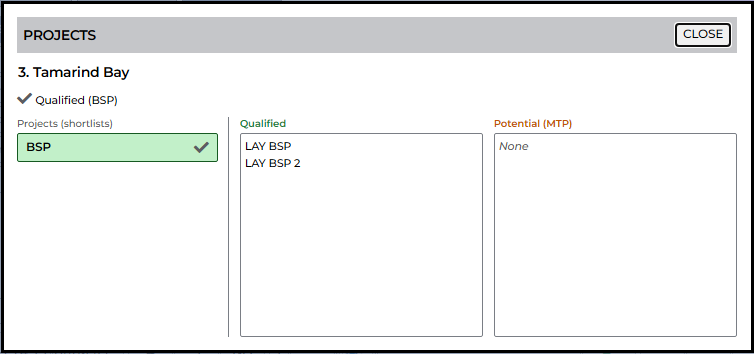
If a horse qualifies for multiple projects or a project containing several child systems, simply click on the PROJECTS cell. This opens the Projects Breakdown Dialog:
- Qualified Tab: Shows every specific child system the runner currently matches.
- Potential (MTP) Tab: Shows child systems the runner could qualify for once MTP odds are snapshotted.
Pausing Projects for a Single Race {#pausing-per-race}
Sometimes a particular race is tricky — for example, extreme ground conditions, heavy rain, or a chaotic 30-runner handicap — and you want to skip betting on that race without disabling your project overall.
When viewing a single race (not a shortlist), look at the race toolbar for the Pause icon ("Mark ticked projects inactive for this race"):
- Click the Pause icon.
- Tick the projects you wish to pause for this specific race.
- Click Apply.
Your qualifiers for those projects immediately turn grey, and Hedger Pro's automated betting engine will safely skip those bets for that race only! All other races throughout the day will continue betting normally.
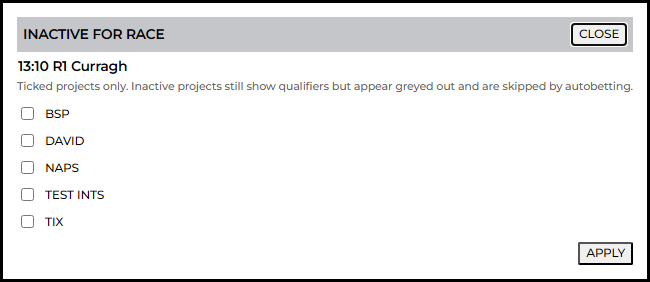
Table layout & columns
Customizing Your Race Card Columns
Every bettor has different preferences. Some love deep jockey and trainer strike rates; others just want live Betfair odds and sparklines. Hedger Pro’s Column Editor lets you tailor the runner table exactly how you want it.
Screenshot pendingToolbar bars icon for opening the Column Editor
/snagged/cards/open-table-editor.pngClick the bars icon on the race toolbar to open the Column Editor:
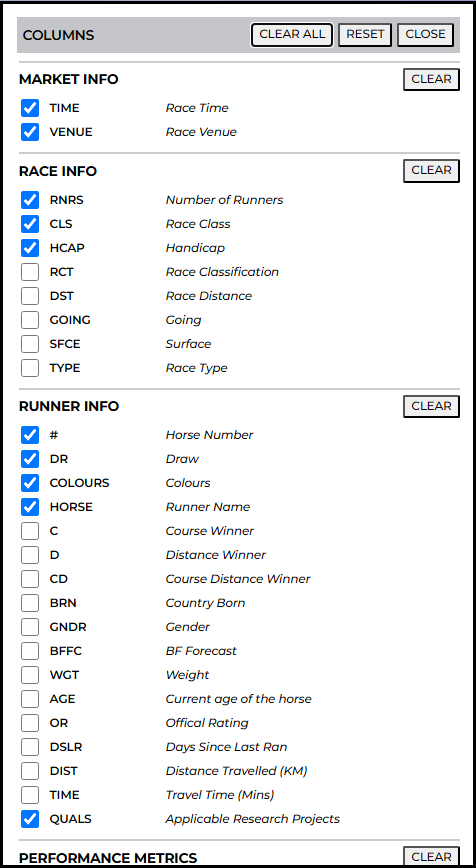
- Check / Uncheck: Toggle individual columns on or off.
- Clear (Per Block): Uncheck all columns in a single group with one click.
- CLEAR ALL: Remove all optional columns for an ultra-clean, minimal table.
- RESET: Instantly restore Hedger Pro’s recommended default layout.
- CLOSE: Saves your layout immediately.
Global vs Per-Project Layouts
Hedger Pro intelligently manages your column layouts:
- When viewing a Single Race: Any changes made in the Column Editor are saved to your Global Card Layout and will apply to all race cards.
- When viewing a Project Shortlist: Any changes made while viewing a named shortlist save specifically to that Project. This means your Lay sprint project can display draw and speed figures, while your Handicap backing project can focus on form and weight!
Column Groups Overview
| Group | Available Columns & Data |
|---|---|
| Market | Race Time, Venue Course (essential for shortlist views). |
| Race | Number of runners, race class, handicap indicator, going, distance. |
| Runner | Draw stall, jockey silks, horse name, age, carried weight, official rating (OR), days since last run (DSLR). |
| PM Stats | Total Performance Data (TPD) metrics: runs recorded, stride length average (SLA), stride frequency average (SFA). |
| HRS / JKY / TRN / TJC | Strike rates, runs, wins, and form over custom lookback periods for Horse, Jockey, Trainer, and Combo. |
| Prices | Live Betfair Back and Lay prices, volume traded, price sparklines, hedge potential (HP), weighted average price (WAP). |
| Results | Official BSP, finishing position, and in-play maximum/minimum prices (appears automatically on closed/settled races). |
Stats Period Pickers (4W to ALL)
In the table headers for Horse, Jockey, Trainer, and Combo, you will notice a weeks dropdown (e.g. 4W, 8W, 12W, 26W, 52W, ALL).
This dropdown sets the lookback window for that entire stats block. For example, you can set Trainer stats to 4W to spot current yard form, while keeping Jockey stats on 52W for long-term consistency!

Prices & Sparklines
- PRICES Sparkline: A mini line chart showing intraday market movements, helping you spot steamers and drifters at a glance.
- VOL: Total money traded on that runner on the exchange.
- B / L: Current best Back and Lay prices. Clicking either price opens the Betting Slip.

Card settings
Card Settings & Display Formats
Click the cog icon on the race toolbar to adjust how stats and text render in your table.
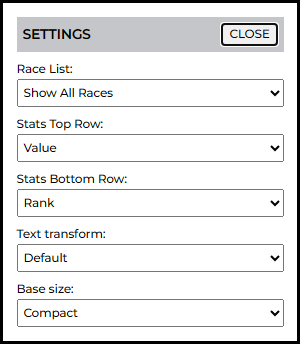
Stats Display (Top Row & Bottom Row)
Each stat cell in the table can display two lines of information:
- Stats Top Row
- Stats Bottom Row
You can configure each row to display any of the following modes:
| Mode | What It Displays |
|---|---|
| Value | The raw statistical value (e.g. 24% strike rate). |
| Score | A normalized statistical score relative to the field. |
| Rank | Percentile ranking among runners in this race (e.g. 1 = highest in the field). |
| Rank Score | A weighted blend of rank and performance score. |
| Reverse Rank | Ranked from lowest to highest. |
| None | Hides the bottom row entirely for a tighter, compact table. |
Text Formatting & Size
- Text Transform: Choose between uppercase, lowercase, or standard capitalisation for stat labels.
- Base Size: Adjust font sizing so the card fits comfortably on your monitor or laptop screen.
Shortlist view
Navigating Shortlists: Combined vs Separated Layouts
When you click on a Project Name or the ALL row in the left rail, you are viewing a shortlist of qualifying horses across multiple races.
In shortlist mode, a Layout dropdown appears above your paging controls, offering two viewing layouts:
Screenshot pendingCombined shortlist layout view
/snagged/cards/shortlist-layout-combined.png1. Combined Layout {#combined-layout}
The Combined Layout presents all qualifying runners in one continuous, seamless grid across the entire day.
| Control | What It Does |
|---|---|
| Rows / page | Choose how many runners to display per page (from 5 up to 1,000). |
| << / < / > / >> | Jump to First, Previous, Next, or Last page of runners. |
| From Now | Shows only qualifying runners in upcoming races from the current time onward. Perfect for active race days! |
| From Start | Loads all qualifiers from the very first race of the day. |
- Clicking any Race Time jumps your focus directly to that race in the left list.
- Hovering over a runner updates the top race info chips so you know the class, going, and distance of that runner's race.
2. Separated Layout {#separated-layout}
The Separated Layout groups qualifying runners neatly by race. Each race gets its own dedicated header block above its runners, ensuring races are never split across pages.
Screenshot pendingSeparated shortlist layout showing per-race caption blocks
/snagged/cards/shortlist-layout-separate.png| Feature / Control | What It Does |
|---|---|
| Races / page | Choose how many whole races appear per page (1 to 25 races). |
| Race Time & Venue Link | Click the race heading to open that race in single-race view. |
| Betfair Icon | Opens the Betfair market in a new tab without altering your screen. |
| Expand All | Instantly opens detailed past-performance form for every runner in that race! |
| Per-Race Sorting | Sorting by any column applies within each race block, keeping meetings tidy. |
Your layout preference is remembered in your browser.
Betting slip
Placing and Scheduling Bets
Hedger Pro includes a full-featured Betfair exchange betting slip. You can place immediate exchange bets, submit Betfair Starting Price (BSP) orders, or schedule automated orders with precision.
Betfair Connection Required
To place real bets, your account must be connected to Betfair via Account → Betfair.
Opening the Slip
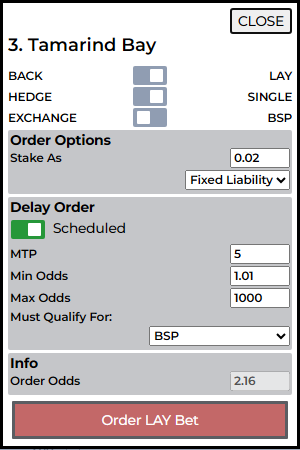
Simply click the Back or Lay button in the runner row's Prices block. The slip will pop open with the horse name, side, and current market price pre-filled.
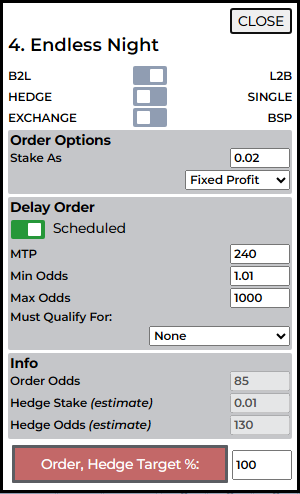
Single vs Hedge Mode
At the top of the slip, choose your betting style:
- Single Bet: A standard back or lay order on Betfair Exchange or at BSP.
- Hedge Bet (Back-to-Lay / Lay-to-Back):
- B2L: Backs the horse first, then automatically submits a lay order to lock in a profit if the price shortens.
- L2B: Lays the horse first, then automatically backs it if the price drifts.
- Target % Slider: Sets your target profit on the closing bet (e.g. 50%, 100% = double your stake).
Order Staking Options
- Stake As: Standard fixed stake in your Betfair account currency (e.g. £10).
- Fixed Liability: Sizes your bet based on maximum potential loss. Essential when laying at higher odds!
- Fixed Profit: Adjusts stake size to win a fixed target amount.
Scheduled Orders {#scheduled-orders}
If you don't want to place your bet immediately, toggle Scheduled to ON:
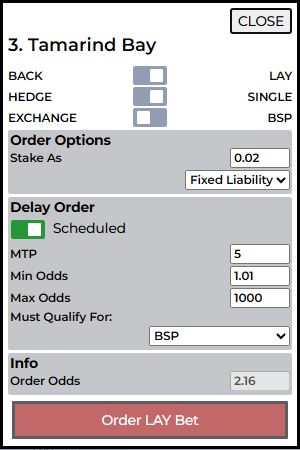
- MTP (Minutes to Post): When the order should fire (e.g. 1 minute before the off).
- Min / Max Odds: Safety boundaries. If market odds have drifted above or steamed below your range when MTP is reached, the bet is automatically cancelled.
- Must Qualify For: Ensures the bet only fires if the horse is still a confirmed qualifier for your chosen project when MTP arrives!
Bets on the card
Tracking Bets on the Runner Table
Once you place or schedule a bet, visual status badges appear directly below the Horse Name on the card:

| Badge | Meaning |
|---|---|
| SB | Scheduled Back — order waiting to fire at MTP. |
| SL | Scheduled Lay — lay order waiting to fire at MTP. |
| B | Back order submitted or matched on the exchange. |
| L | Lay order submitted or matched on the exchange. |
| B2L / L2B | Hedge order in progress — opening bet placed, closing bet queued. |
As the race approaches and your bets match or settle, these badges update automatically. To see full bet histories, P&L, and settled statements, head over to the Bets tab.
Runner details
Deep Runner Form Analysis
Click the search icon on any runner row (or click Search (all runners) on the top toolbar to open all horses simultaneously) to expand our comprehensive three-tab form breakdown.
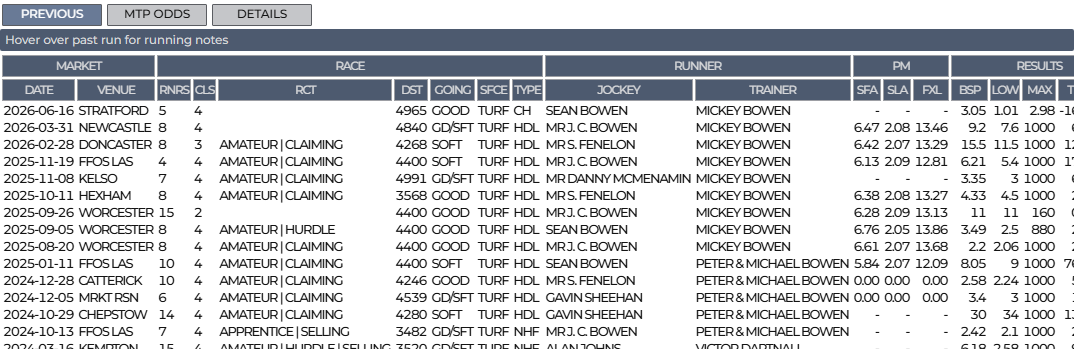
1. The PREVIOUS Tab (Past Runs)
A complete chronological record of the horse’s past outings:
- Race date, course, surface, going, class, distance, and field size.
- Official finishing position and beaten lengths behind the winner.
- Official BSP and in-play price highs/lows.
- In-Running Comments: Hover over any row to read the race analyst's notes on how the horse travelled, jumped, or finished.
- Click any column header to sort past performances.
2. The MTP ODDS Tab (Market Moves)
Track how money has moved on the horse throughout the day:
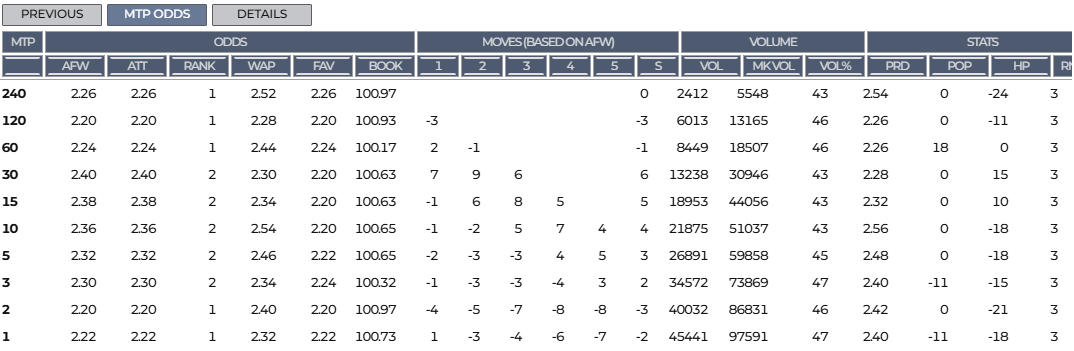
- Odds snapshots recorded at 240, 120, 60, 30, 15, 10, 5, 2, and 1 minute before the off.
- Traded volume progression and price shortening/lengthening indicators.
- Spot late market support before placing your bets.
3. The DETAILS Tab (Metrics & Charts)
The DETAILS tab brings together deep technical summaries:
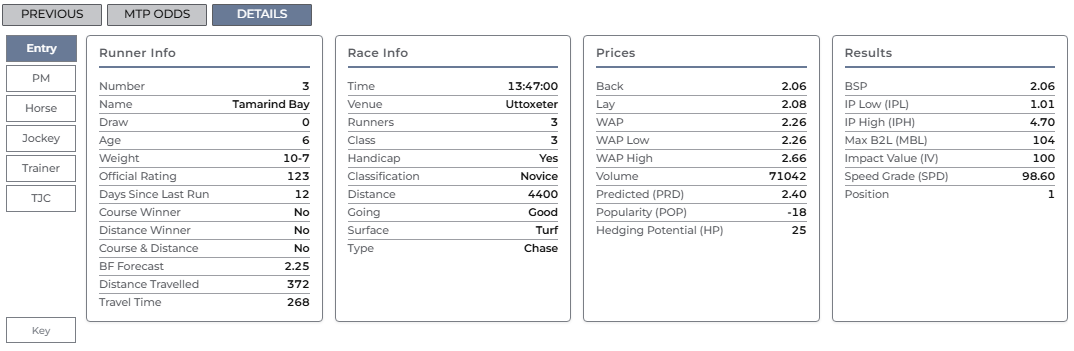
- Entry: Full pedigree, draw, weight, headgear, days off, and course/distance win badges.
- Performance Metrics (PM / TPD): Stride length average (SLA), stride frequency average (SFA), and mechanical efficiency figures where Total Performance Data tracking is active.
- Field Stats: Value, Score, and Rank tables for Horse, Jockey, Trainer, and Trainer/Jockey combination.
- Trend Charts: Visual graphical representations of the horse's performance trends over time.