 HedgerPro User Guide
App Navigation

The Pro App has 5 main tabs: CARDS, RESEARCH, PORTFOLIO, and BETS – plus FOLLOWING when system publisher has added you to their published group(s).
This page is your map. Each section gives a short overview – full how-to detail lives on the linked Pro App and Other Pages.
| Tab | Purpose | Detail page |
|---|---|---|
| CARDS | Race cards, project shortlists, qualifiers, bet slip | Cards → |
| RESEARCH | Build projects, filters, charts, research search | Research → |
| PORTFOLIO | Combined P&L, stakes, auto bet toggles | Portfolio → |
| FOLLOWING | Published groups you have been invited to (tab hidden until then) | Following → |
| BETS | Bet history, scheduled bets, export | Bets → |
CARDS
Today’s, future, and historical race cards.
Race list (left panel)
The race list is your hub for moving between days and races. Three parts work together:
| Part | Purpose |
|---|---|
| Race date | Date picker – load races for the chosen day; refresh icon reloads the card |
| Cards Filter | All races, races with qualifiers, or one of todays meetings |
| Projects | Active projects listed for quick access; ALL shows every project |
| Race list | Races for that day; numbers beside each race show how many qualifiers match your projects |
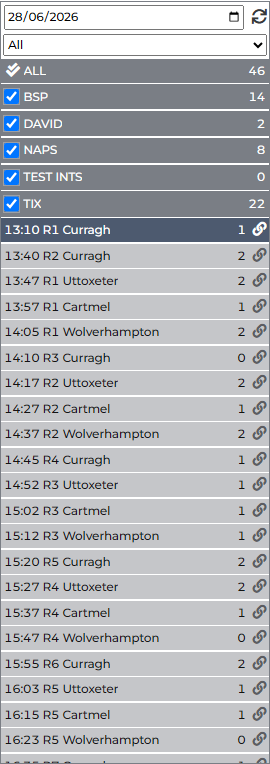
Numbers next to a race = horses matching your saved projects for that race. The link icon beside a race opens the market in Betfair in a new tab in your browser.
Race card (main panel)
Each race card shows quick race information above the runner table: class, handicap, going, distance, type, surface, and number of runners.
Toolbar above the table:
| Control | Purpose |
|---|---|
| Show / hide race list | Toggle the left panel for a wider card view |
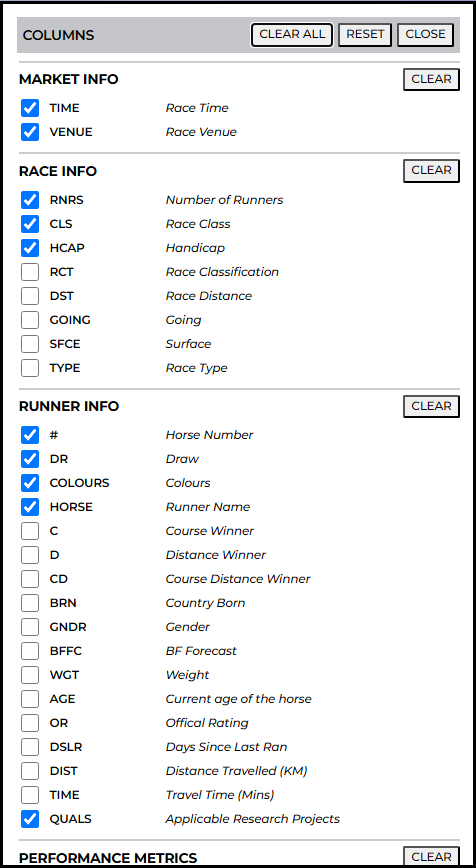
| Layout editor | Choose which columns appear in the runner table |
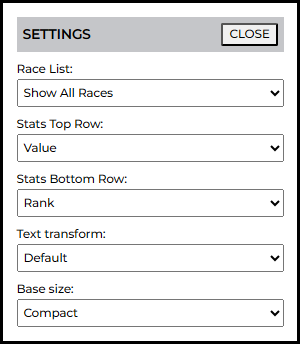
| Card settings | Shortlist qualifiers, race list filtering, stats display |

Layout editor
Pick the stats and price columns you want on the card. Layouts can be saved for reuse.
Card settings
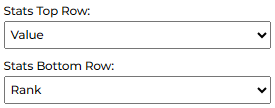
Race list – hide or fade races with no project qualifiers. Stats display – Top/Bottom row modes (value, rank, rank score, etc.), text transform, base size. Qualifier icons are on the card itself – see Cards → Qualifiers.
RESEARCH
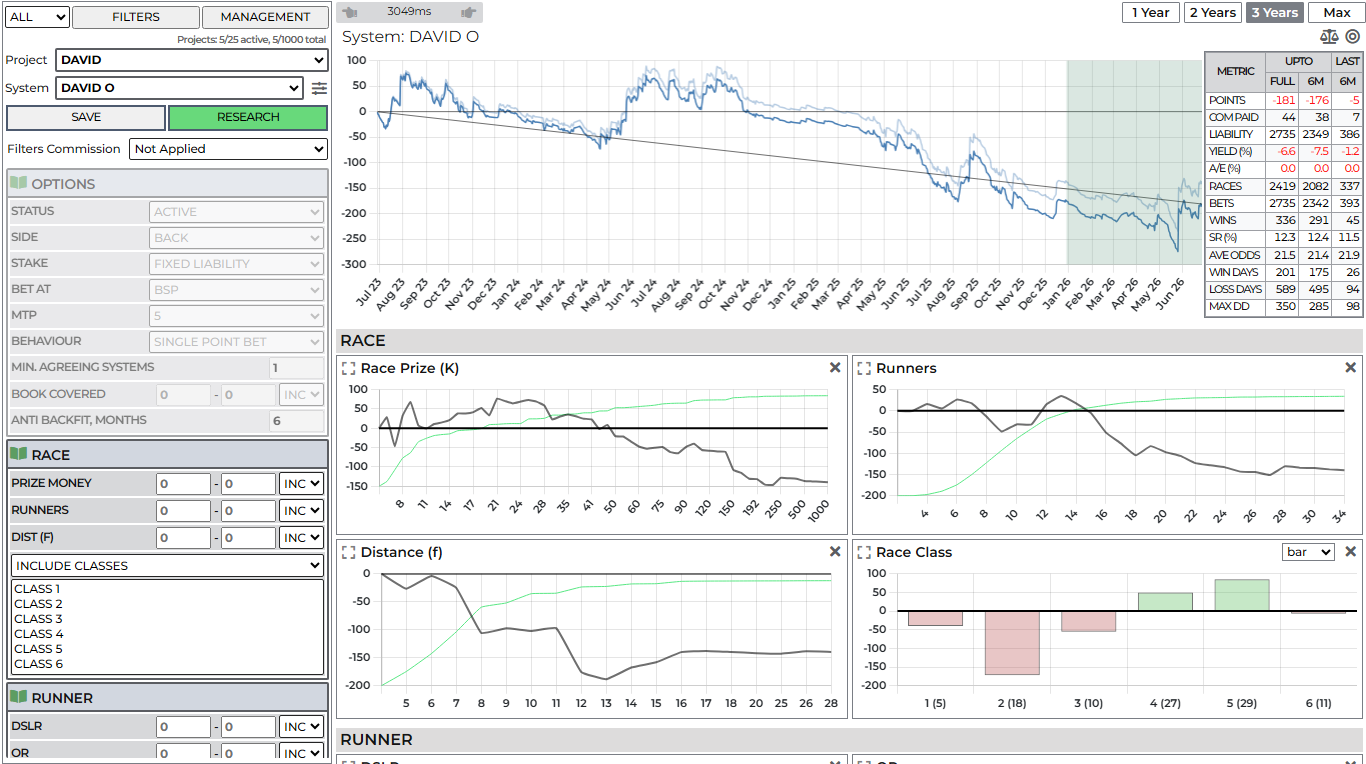
The Research tab is where you build and refine projects and systems — each project can hold multiple child systems with their own filters.
- P&L chart and filters for the project or individual system.
- Graphical filters, line/bar charts, and tables show what works before you save.
- Save projects to update current and past qualifiers.
Project list
Your project list holds every saved project. Select a project to edit project filters, view charts, or run research search.
Filters (overview)
Filters can have ranges (e.g. odds rank 2-2 for second favourite only). A range of 0-0 means the filter is visible on charts but not applied to the project.
Filter types and chart behaviour are documented on the Research page.
MANAGEMENT dialog
Open MANAGEMENT to maintain projects at scale – NEW, COPY, RENAME, COMBINE, EXPORT, BACKUP, RESTORE, and more. Published groups appear here only if an admin has assigned your account as a verified publisher. Full operation list: Project management →.
PORTFOLIO
Combine projects with stakes (points) and optional auto betting. Per-project P&L charts, combined back/lay view, and the ANALYSIS dialog for multi-project stats.
FOLLOWING
The FOLLOWING tab appears only when another member has added your account to a published group. View shared systems, set stakes, and open group bet history.
Publishing to others uses MANAGEMENT → Published (verified publishers only). See Project management → Published.
BETS
Live and scheduled bets from the in-app slip – period summaries, detailed bet grid, CSV export, simulation mode, and archive tools.
Quick links
| Destination | URL | Manual |
|---|---|---|
| Pro App | /cards/ | Cards and tab pages above |
| Stats Reports | /reports/ | Stats Reports |
| Race Lens | /race-lens/ | Race Lens |
| TIX | /tix/ | TIX |
| Account | /account/ | Account |
| Help | Help & support | Contact form and assistant (main site) |