 HedgerPro User Guide
Project Management
The central command station to create, organize, port, back up, and combine all your betting projects.
As your strategy library grows, keeping your systems organized is vital. In version 1.6, managing hundreds of standalone systems one by one could be tedious. Version 2.0 transforms this with the Project Management hub: a clean, powerful workspace where you can organize up to 5,000 systems across 50 Projects in seconds.
To open Project Management, simply click the MANAGEMENT button in the left settings panel on the Research tab.
What You Can Do in Management
- Organize Projects & Child Systems: View your active and draft projects, rename them, duplicate them, or delete old ones with one click.
- Import Free Sample Systems: Instantly add our bundle of 26 tested sample systems to kickstart your portfolio.
- Port from Version 1.6: Bring your existing 1.6 systems smoothly across into 2.0 Projects.
- Share via Project Keys: Import shared systems from friends or community experts.
- Set Default Filters: Pre-select your favourite filters so every new system opens ready to go.
- Backup & Cloud Restore: Download configuration files to your PC or roll back changes using automated server snapshots.
Managing Your Projects
The Manage tab gives you complete control over your strategy inventory:
Project Capacities & Statuses
- Active Projects (Up to 50): Active projects appear in your Portfolio for live betting and display live qualifiers on race cards.
- Draft Projects (Unlimited): You can keep as many Draft projects as you like! Use Draft mode to tinker, research, and perfect strategies in the background without affecting your live betting.
- Child Systems (Up to 100 per Project): Each project can hold up to 100 child systems, giving you an astonishing capacity of up to 5,000 systems.
Fast Project Actions
Beside each project row, intuitive buttons allow instant management:
| Action | What It Does |
|---|---|
| Expand / Collapse | Click to reveal all child systems sitting inside that project. |
| Copy (Duplicate) | Clones the entire project (and all child systems inside it) under a new name. |
| Rename | Quickly update the project’s name in place. |
| Delete | Deletes the project and its child systems cleanly. |
| Bulk Select | Select multiple projects to copy or delete them in batches. |
Creating & Importing Projects
The New tab provides four ways to add projects to your account:
New (Blank Project)
Start fresh with a brand new idea:
- Click New.
- Type a Project Name (e.g. *”Turf Lay 1 MTP”*) and an initial System Name (e.g. *”Sprint Maidens”*).
- Click Add New System.
- Your new project opens in Draft mode, ready for you to add filters in Research.
Importing Sample Systems
New to Hedger Pro or version 2.0? The fastest way to get started is importing our free sample systems:
- Click Samples.
- Click Add example projects.
- In less than two seconds, 26 pre-built sample systems are imported into your account!
You can explore their filters in Research, view their combined performance in Portfolio, or adjust their stakes.
Porting Version 1.6 Systems into 2.0
If you are an existing member moving from version 1.6, bringing your systems across is easy:
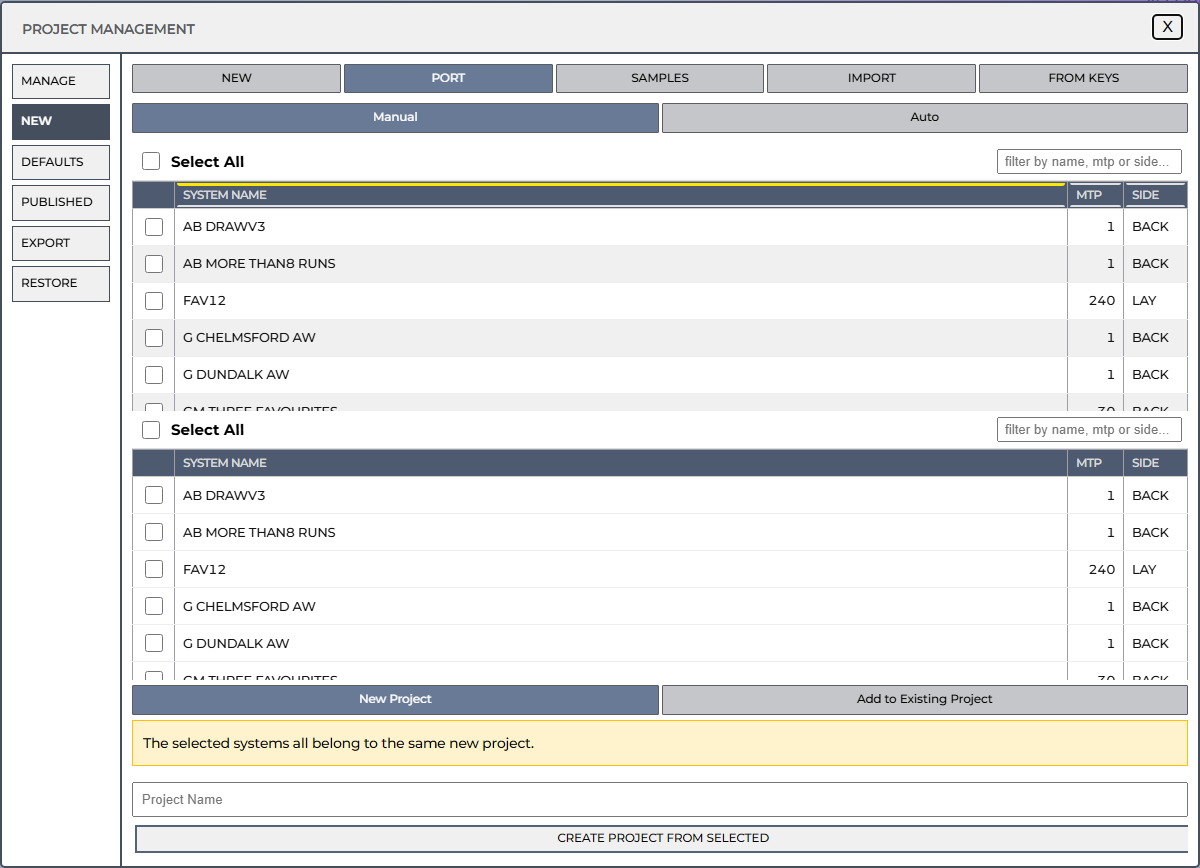
- Click Port.
- Hedger Pro displays all your existing 1.6 systems.
- Tick the systems you want to group together into a new 2.0 Project. *(Remember: systems grouped together must share the same core rules, like Back/Lay side and MTP).*
- Give your new project a name (e.g. *”Apex Lay 1 MTP”*) and click Create Project.
- Your ported project is created as a Draft. Open it in Research, click RESEARCH, switch the status to Active, and click SAVE.
Your hard-won 1.6 strategies are now fully ported into version 2.0!
Importing Project Keys
If a friend or fellow member shares a project key with you:
- Click Key.
- Paste the provided key code into the text box.
- Click Import.
Hedger Pro fetches the project as it exists at that moment and creates a clean copy in your account.
Setting Your Default Filters
Tired of adding Course, Class, Distance, and Odds every single time you start a new system?
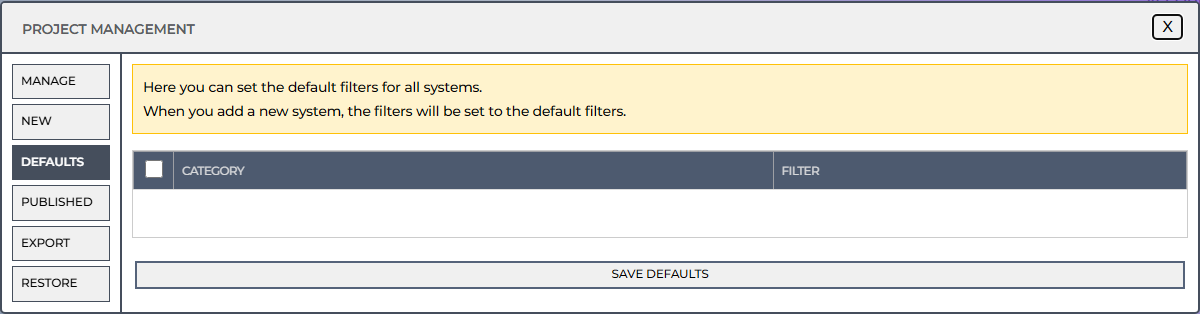
- Open Defaults.
- Go through the filter categories and tick the ones you want to see open by default on every new system.
- Click Save Defaults.
From now on, whenever you create a new system, those chosen filter boxes will automatically appear open and waiting for you!
Combining Projects
Want to merge several related projects into one master project?
- Use the Combine tab to select two or more existing projects and merge them into a single project.
- Combined projects are marked with an asterisk (
*) suffix in your shortlist list. - This allows you to inspect combined qualifiers and run merged research across different angle groups seamlessly.
Exporting System Files
Keep your strategies secure on your own computer:
- Go to Export.
- Choose your Project (or select a single child system).
- Choose System Filters.
- Click Export to download a clean
.jsonfile directly to your computer.
Restoring Systems & Automated Backups
Never worry about accidentally deleting or messing up a system. Hedger Pro provides two restore methods:
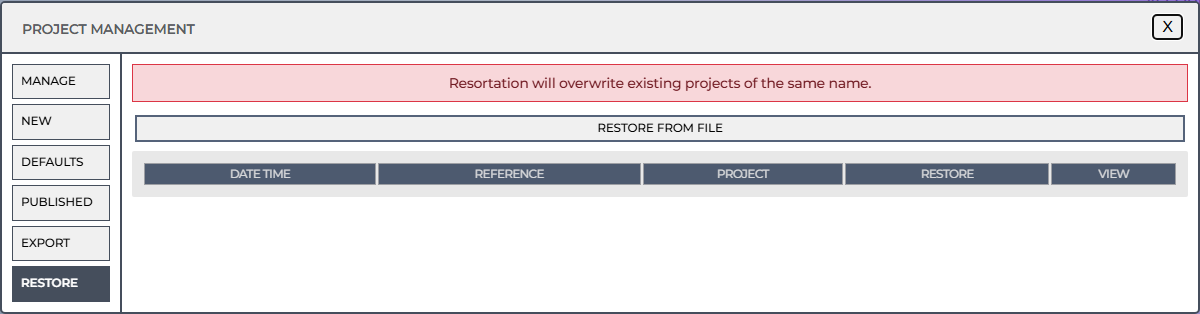
1. Restore from File
- Go to Restore > From File.
- Select the exported JSON file from your computer.
- Choose how to restore:
- Replace Project: Overwrites the current project with the file contents.
- Add to Existing Project: Appends the systems to an existing project.
- Create New Project: Creates a fresh project containing the imported systems.
2. Automated Cloud Backups (Time Machine)
Every time you click SAVE on an active project, Hedger Pro automatically saves a timestamped snapshot to our cloud server:
- Go to Restore > Automated Backups.
- Browse your past saves by date and time.
- You can restore the entire project or revert just one child system that you accidentally altered earlier in the day!